






WordPress Core Web Vitals Optimisation: Practical Fixes for Speed and UX

Core Web Vitals have become one of the most talked-about ranking signals in Google’s toolbox and for good reason. They measure real user experience: how fast your page loads, how quickly it responds to interaction and how stable the layout feels while content appears. For WordPress site owners, these metrics matter because a slow, janky website doesn’t just frustrate visitors, it actively harms your search visibility. If your WordPress site is underperforming on speed and responsiveness, working with a team that offers WordPress development focused on performance helps you identify the root causes and put practical fixes in place.
We’re going to break down the three Core Web Vitals metrics and show you exactly why WordPress sites struggle with them. You’ll get practical fixes that work for a simple brochure website, a WooCommerce store or a blog packed with content.
What Are Core Web Vitals and Why Do They Matter?
Google rolled out Core Web Vitals as ranking factors that measure real user experience. Largest Contentful Paint (LCP), Interaction to Next Paint (INP) and Cumulative Layout Shift (CLS) each track different aspects of how your page performs and Google weighs them when deciding search rankings.
How quickly does your biggest page element load? That’s what LCP tracks, whether it’s your hero image, main heading or large block of text. Google wants this under 2.5 seconds for a good score. Hit 4 seconds and you’re in trouble.
March 2024 brought INP as the replacement for First Input Delay. Unlike its predecessor, INP doesn’t just measure that first click but tracks your page’s worst interaction delay across the entire user session. Keep it under 200 milliseconds and you’re golden.
Visual stability gets measured through CLS. Elements that jump around while someone’s trying to read or click something destroy the user experience and you want that score sitting below 0.1 for good performance.
| Metric | What It Measures | Good Threshold | Poor Threshold |
|---|---|---|---|
| LCP (Largest Contentful Paint) | Loading performance | 2.5s or less | Over 4s |
| INP (Interaction to Next Paint) | Responsiveness | 200ms or less | Over 500ms |
| CLS (Cumulative Layout Shift) | Visual stability | 0.1 or less | Over 0.25 |
Don’t mistake these for vanity metrics because they show exactly what happens when people visit your site. WordPress sites that bomb on Core Web Vitals feel slow and clunky, which means visitors bounce faster, engage less and convert poorly. Performance is a core part of any serious WordPress SEO strategy.
Why WordPress Sites Struggle with Core Web Vitals

WordPress powers over 40% of all websites globally according to W3Techs and that flexibility makes it a strong platform. But that flexibility comes with performance headaches. Each plugin dumps more JavaScript and CSS onto your pages, while themes pile on layout code, fonts and styling that browsers have to churn through. Before you know it, your WordPress site’s carrying serious front-end weight that most site owners never notice building up.
Render-blocking resources cause the biggest headaches. Themes and plugins love shoving stylesheets and scripts into the document head, so browsers get stuck downloading and parsing everything before they can even start showing the page. Your LCP suffers because that largest element stays hidden until the browser clears all those blocking resources.
WordPress creates different image sizes when you upload something, but that doesn’t mean it’s smart about which one gets served. Mobile visitors often end up downloading large, uncompressed images that should never have left the server. This single issue tanks more LCP scores than almost anything else we see.
Optimising images alone can improve LCP by several seconds on many WordPress sites. It is often the single most impactful change you can make for content-heavy WordPress installations.
Every chat widget, analytics tracker and social media button you add creates another burden for the browser to handle. These scripts all fight for processing time on the main thread. Your INP scores suffer because the page can’t respond quickly when someone tries to click or scroll.
Fixing LCP: Getting Your Largest Element to Load Faster
Your hero image appears four seconds after someone lands on your page and they’re already thinking about leaving. LCP measures exactly this kind of delay, which is why most WordPress owners spot problems with this metric first.
Convert your images to WebP or AVIF and make sure they’re properly sized. WordPress has handled responsive images since version 4.4, but plenty of themes interfere with this functionality and serve full-size images to everyone. You need to check that your theme isn’t stripping out srcset attributes. The WordPress performance documentation covers all the technical details you’ll need for proper image handling.
Next, preload your LCP element. Got a hero image that’s your largest contentful paint element? Stick a preload hint in your document head and the browser will start grabbing that image way before it even sees the HTML image tag.
<link rel="preload" as="image" href="/wp-content/uploads/hero-image.webp" type="image/webp">You also need to reduce server response time. When your Time to First Byte crawls along, everything else gets dragged down with it. Front-end tweaks won’t save you if your WordPress hosting can’t keep up. Managed WordPress hosting comes with server-level caching, PHP OPcache and properly configured CDNs that make a difference. And object caching through Redis or Memcached cuts down those database query times, which WordPress pages desperately need.
Then eliminate any render-blocking CSS. Critical CSS needs to go straight into your document head as inline styles. Everything else can load asynchronously. WordPress plugins will do this automatically but you get much better control when you handle it manually.
Fixing INP: Making Your Site Respond to Interactions
INP sits as the newest Core Web and it’s the hardest one to sort on WordPress sites. LCP focuses on loading speed but INP measures how your browser responds to every single user interaction across the whole page session. Clicks, taps, keypresses all get tracked and your worst interaction becomes your final score.
JavaScript execution on the main thread kills your INP scores faster than anything else. Your browser gets stuck running scripts and can’t respond to clicks or taps, which creates those frustrating delays where users wonder if their interaction even registered.
Start by auditing your JavaScript. Fire up Chrome DevTools Performance panel and hunt down those long tasks that run over 50 milliseconds. You’ll often discover one badly coded plugin hogging most of your main thread time. The web.dev guide to optimising INP gives you a solid framework for tracking down these performance killers.
Next, defer any non-critical JavaScript. Slap a defer attribute on scripts that don’t need to run straight away and your browser can download them alongside HTML parsing without jamming up the main thread. Scripts that only activate when users interact with certain elements work brilliantly with lazy-loading.
- Move analytics scripts to load after the page is interactive
- Defer chat widget initialisation until the user scrolls or hovers over the chat trigger
- Load comment systems only when the user reaches the comments section
- Replace heavy social sharing plugins with lightweight alternatives or static share links
- Use the
requestIdleCallbackAPI for non-urgent JavaScript tasks
It also helps to break up long tasks. Got custom JavaScript doing heavy lifting? Chop those operations into bite-sized pieces using setTimeout or requestAnimationFrame so the browser can handle user input between chunks. Google’s documentation on PageSpeed Insights shows you exactly which tasks need splitting up.
Count how many plugins you’ve got running and ask yourself if each one deserves its place. We’re not talking about wholesale deletion here. The aim is to reduce plugin count strategically. Some plugins dump JavaScript on every single page when they should only load where they’re needed. That contact form script doesn’t belong on your homepage. Working with a team that specialises in technical SEO helps you identify which plugins are harming performance and find better alternatives.
Fixing CLS: Preventing Layout Shifts
Most CLS problems have straightforward solutions, which is good news. CLS issues on WordPress sites typically stem from images without dimensions, late-loading fonts, injected content and ad slots that resize after the page loads.
The first fix is to always define image dimensions. WordPress has included width and height attributes on images by default since version 5.5, but some themes and page builders strip these out. Every <img> tag should include explicit width and height attributes, which lets the browser reserve the correct amount of space before the image loads and prevents the layout from shifting when the image appears.
Web fonts cause layout shifts because text rendered in a fallback font often has different dimensions to text rendered in the final web font. Use font-display: swap carefully. While font-display: swap avoids invisible text during loading, it can cause a noticeable layout shift when the fonts swap. Consider preloading your most critical font files and using font-display: optional for non-critical fonts. The web.dev CLS optimisation guide covers font strategies in detail.
Reserve space for late-loading content. Your page probably loads advertising slots, embedded content or newsletter signup forms that appear after everything else. Set aside the right amount of space with CSS before these elements load. Without this, content jumps around when the asynchronous elements finally show up.
.ad-slot {
 min-height: 250px;
 width: 100%;
}

.newsletter-embed {
 min-height: 180px;
 width: 100%;
}
Avoid injecting content above existing content. Nothing annoys users more than trying to read something while new content keeps pushing it down the page. Cookie banners that shove everything south, notification bars appearing out of nowhere and headers loading late all create this problem. Position them as overlays or fixed elements instead so they don’t disrupt the document flow.
Measuring and Monitoring Your Progress
Fixing Core Web Vitals isn’t something you do once and forget about. Measure where you’re starting from, make your changes, then keep watching how things perform. Lab data and field data both matter here.
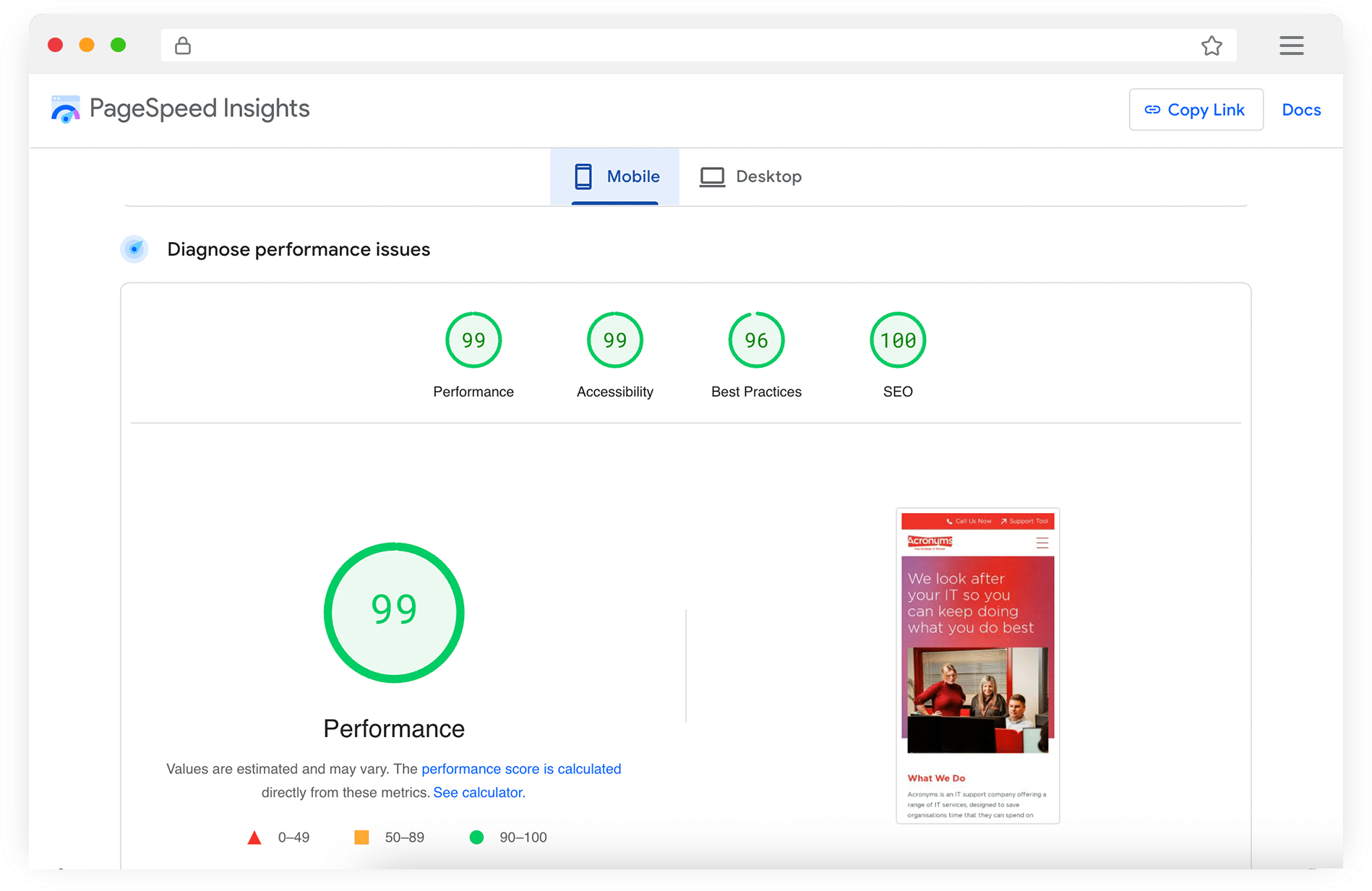
All green Core Web Vitals scores achieved for Acronyms IT Support after a full WordPress performance optimisation project.
Google Lighthouse, PageSpeed Insights and Chrome DevTools give you lab data through synthetic tests in controlled environments. You get instant feedback on any changes you make, which helps when you’re trying to fix specific problems. But lab data doesn’t always match what real users experience since the testing conditions stay the same every time.
Chrome User Experience Report data gets collected from actual Chrome users visiting your site. Google ranks based on this field data, not the synthetic. You can get CrUX data through PageSpeed Insights, the CrUX Dashboard or their API documentation. Changes take weeks to show up because Google aggregates everything over 28 rolling days.
| Data Type | Source | Best For | Limitation |
|---|---|---|---|
| Lab data | Lighthouse, PageSpeed Insights | Debugging, testing changes | Doesn’t reflect real users |
| Field data | CrUX, Search Console | Understanding real user experience | 28-day rolling average, delayed |
Google Search Console groups your URLs by Core Web Vitals status as good, needs improvement or poor. Start there because it shows which page templates cause the biggest headaches. Fix one template and you’ll often see improvements across hundreds of pages.
WordPress-Specific Tools and Plugins That Help
WordPress has built some proper tools for Core Web Vitals work. The Performance Lab plugin comes straight from the WordPress core performance team and includes experimental features that speed things up before they land in WordPress itself. It covers modern image formats, fetchpriority hints and better script loading.
Caching makes everything faster, but you need full page caching that stores the complete HTML output. WordPress won’t need to run PHP and database queries for every single visitor. Your TTFB drops like a stone. Most managed WordPress hosts sort this out at server level, but WP Super Cache or W3 Total Cache work fine if yours doesn’t.
- Image optimisation: ShortPixel, Imagify or Smush for automatic compression and WebP conversion
- Caching: Server-level caching (preferred) or WP Super Cache for full page caching
- CSS/JS management: Asset CleanUp or Perfmatters for removing unused scripts on a per-page basis
- Font management: OMGF (Optimize My Google Fonts) for self-hosting Google Fonts locally
- Lazy loading: Native WordPress lazy loading (enabled by default since 5.5) for images below the fold
Installing multiple performance plugins creates more problems than it solves. You’re adding processing overhead with each one and they’ll often fight with each other rather than work together. Choose one plugin per task and spend time setting it up properly instead of throwing five different caching solutions at the same problem.
Building a Core Web Vitals Optimisation Workflow

Don’t treat Core Web Vitals like a weekend project you can tick off and forget. Build measurements into your regular WordPress maintenance workflow and start by getting baseline scores for your key pages. Run them through PageSpeed Insights and note down the LCP, INP and CLS numbers for mobile and desktop.
Focus on LCP first because users notice loading speed improvements immediately. CLS problems usually fix fastest since you’re mostly adding image dimensions or CSS spacing. But INP will eat up your time because you’ll need to audit JavaScript and possibly swap out plugins entirely.
Your lab scores update straight away but real user data takes time to catch up. Field data needs 28 days minimum to show the full picture of your changes, so check Search Console’s Core Web Vitals report weekly while you wait.
Document every change you make and timestamp it. You’ll thank yourself later when performance scores suddenly tank after a plugin update or theme tweak. Performance budgets work brilliantly here too. Set limits for page weight, JavaScript execution time and request counts, then check them whenever you make major site changes.
There’s no finish line with Core Web Vitals optimisation. Google keeps tweaking their metrics, WordPress releases new versions and the techniques that work today might need adjusting tomorrow. But the core principle stays the same. Faster sites with better responsiveness and visual stability win with users and search engines. Get these basics right and every part of your site benefits.
FAQs
What are the three Core Web Vitals metrics for WordPress?
The three metrics are Largest Contentful Paint (LCP), which measures how quickly your main content becomes visible and should be under 2.5 seconds. Interaction to Next Paint (INP) tracks how responsive your site is when people click or tap and needs to stay below 200 milliseconds. Cumulative Layout Shift (CLS) measures visual stability, meaning how much your page layout moves around during loading and should stay below 0.1. Google uses all three as ranking signals.
Why do WordPress sites commonly fail Core Web Vitals?
WordPress sites struggle because plugins and themes pile JavaScript and CSS onto every page, creating render-blocking resources that delay loading. Images often get served at full size regardless of the device, which hammers LCP scores. Third-party scripts from analytics, chat widgets and social embeds compete for the browser’s main thread, making INP scores worse because the browser is too busy processing JavaScript to respond to user interactions.
How do I fix a poor LCP score on my WordPress site?
Start by optimising your images, converting them to WebP format and using the srcset attribute to serve appropriately sized files for each device. Add a preload hint for your hero image so the browser starts fetching it early. Reduce your server response time with proper caching and a CDN and eliminate render-blocking CSS by inlining critical styles and loading the rest asynchronously. Upgrading to better hosting often makes the single biggest difference to LCP.

Co-Founder at Priority Pixels
Paul leads on development and technical SEO at Priority Pixels, bringing over 20 years of experience in web and IT. He specialises in building fast, scalable WordPress websites and shaping SEO strategies that deliver long-term results. He’s also a driving force behind the agency’s push into accessibility and AI-driven optimisation.


 Nathan Yendle | 02/10/2026



